

Two install modes
Static-token (single workspace) — fastest setup. One bot token in env, all tasks posted to that workspace. Use this for self-hosted deployments where one team owns the awaithumans server. OAuth (multi-workspace) — for distribution scenarios where multiple Slack workspaces install your app. The dashboard’s Settings → Slack page handles the install flow. For your first run, start with static-token.Static-token setup
1. Create a Slack app
Go to api.slack.com/apps → Create New App → From manifest. Paste:YOUR-PUBLIC-URL with your awaithumans server’s public address. For local dev: https://<your-ngrok-id>.ngrok.io. The users:read.email scope is needed for the slack:alice@acme.com route format (resolves emails to Slack user IDs).
Install the app to your workspace. Two values to copy — they live on different pages in the Slack admin UI:
- Bot User OAuth Token (
xoxb-...) — left sidebar: Features → OAuth & Permissions. The token is in the OAuth Tokens section at the top of that page. - Signing Secret — left sidebar: Settings → Basic Information. Scroll to App Credentials; the signing secret is in that block.
2. Set env vars
awaithumans dev. The dashboard’s Settings → Slack page now shows the workspace as a read-only “env” entry.
3. Test it
Save asslack_test.py and run with python slack_test.py:
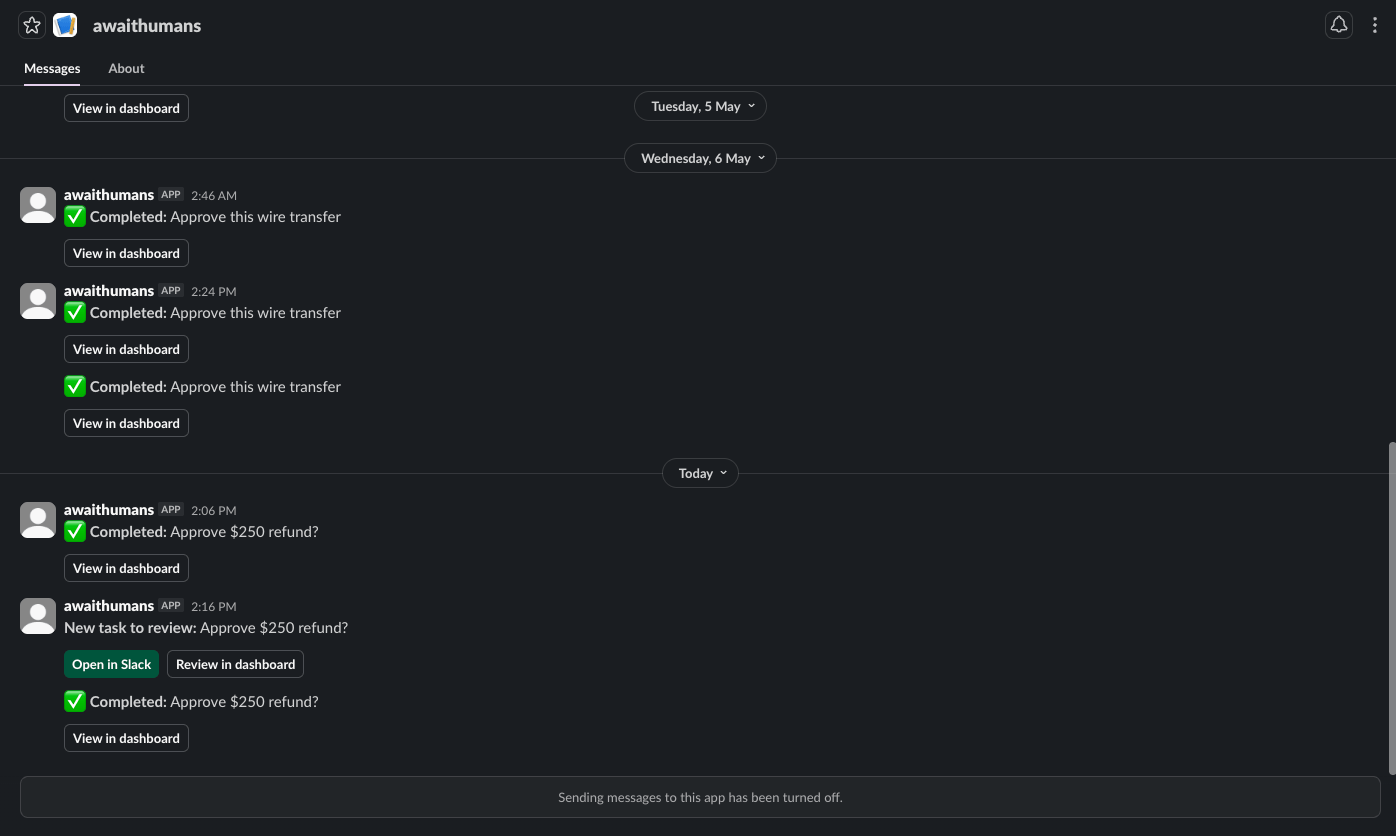
#general. Click Review, fill the modal, submit. The script’s await_human_sync returns and prints the typed RefundDecision. Swap the channel to whatever your bot has been invited to.
OAuth setup
SetAWAITHUMANS_SLACK_CLIENT_ID, AWAITHUMANS_SLACK_CLIENT_SECRET, AWAITHUMANS_SLACK_SIGNING_SECRET, and AWAITHUMANS_SLACK_INSTALL_TOKEN (operator-only secret you share with admins who can install).
Open https://YOUR-PUBLIC-URL/api/channels/slack/oauth/start?install_token=YOUR_TOKEN to kick off the install. After consent, the workspace appears in Settings → Slack.
OAuth installs are stored encrypted at rest (AES-GCM keyed off PAYLOAD_KEY).
Adding users to the directory
Tasks DM’d to a Slack user only open the modal if that user exists in the awaithumans directory. Add them via: Dashboard → Users → Add user. The form has a “Slack member” picker that pulls the workspace’susers.list so operators select from a dropdown rather than copy-pasting U… IDs. The display name auto-fills. Email is optional — a Slack-only user (no email, no password) can still complete tasks; they reach the dashboard via the signed handoff URL the bot puts on every DM.
Notify formats
@alice) are resolved via users.list once per workspace per process, then cached. Emails use Slack’s dedicated users.lookupByEmail. Raw user IDs pass through unchanged.
For a multi-workspace OAuth install, suffix the channel/handle with the team:
Broadcast (channel)
Posts a message with a “Claim this task” button. First clicker wins atomically. After claim:- The original message updates to “Claimed by @user” so the button vanishes for everyone else
- The modal pops for the claimer immediately (using Slack’s interactivity trigger)
- The “View in dashboard” button on the updated message is now signed for the claimer (handoff URL — see below)
- Audit log records the claim with channel=
slack
Direct (user)
DMs the Slack user with two buttons: Approve in Slack (opens the modal in place) and Open in Dashboard (signed handoff URL — works even if the user has no email/password). The implicit-assignee derivation pins the recipient asassigned_to_user_id at task-create time, so the Slack view_submission auth check accepts their submission. Without this, a DM to @alice would surface “This task isn’t assigned to you” when she clicks through.
Signed dashboard handoff (Slack-only users)
A Slack-only user (no email, no password in the directory) has no way to clear the dashboard’s login wall — clicking “Open in Dashboard” without help would bounce them to/login. The notifier signs the URL with (user_id, task_id, expiry, hmac) at post time:
/task?id=TASK. Stateless HMAC, HKDF-derived key from PAYLOAD_KEY, no DB roundtrip on the verify path.
TTL is bound to task.timeout_at — a 7-day approval has a working link on day 6. Expired links return 400.
The post-claim “View in dashboard” button on broadcast messages is also signed, so claimers without password credentials get the same handoff.
Modal form
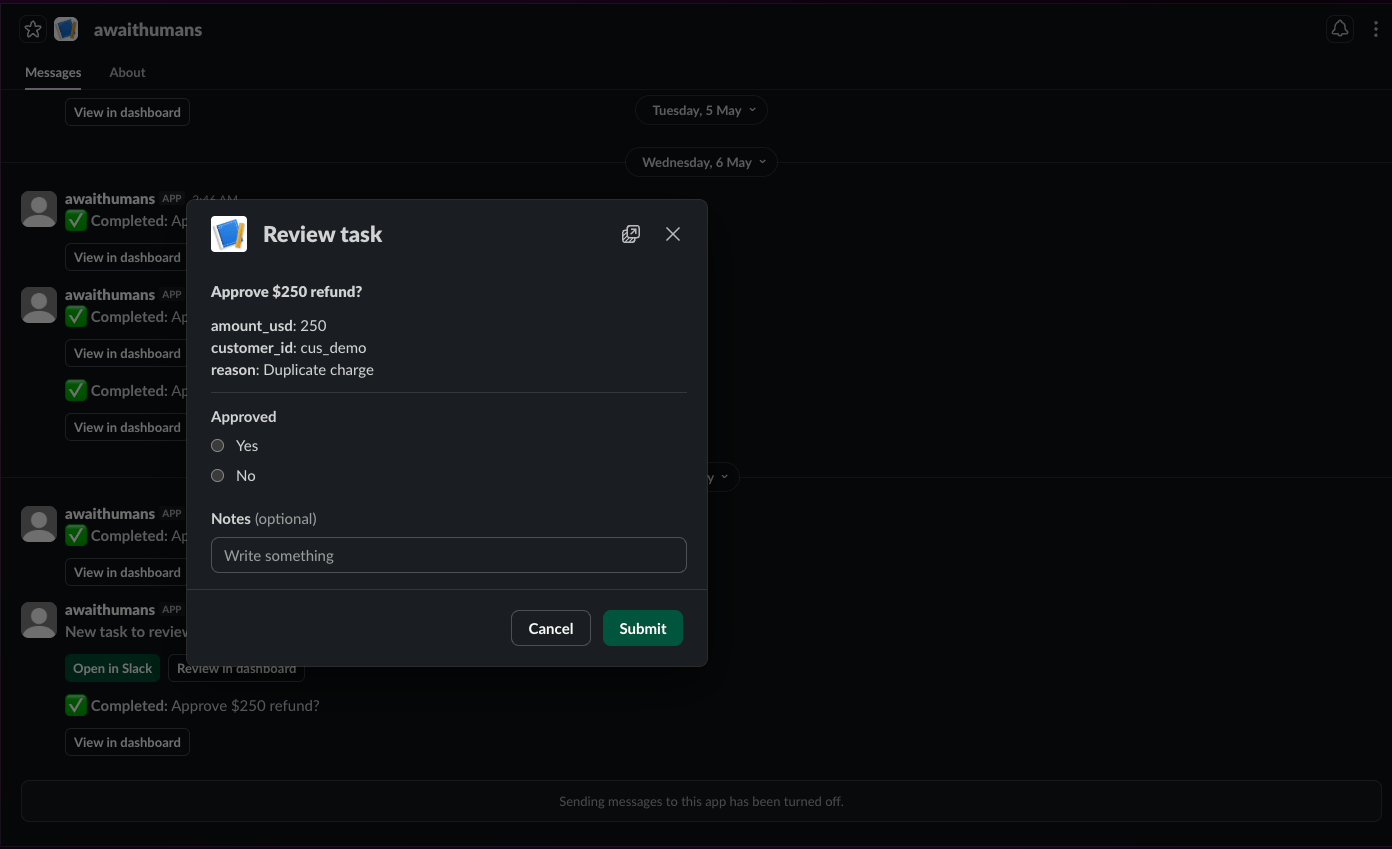
form_definition. Fields render as:
Complex types (file uploads, images, signatures) fall back to a “Review in dashboard” link.
Both SDKs synthesize
form_definition from their native schema language — Python via extract_form() against a Pydantic model, TypeScript via extractForm() against a Zod object schema. A single boolean response in either tongue produces a Switch primitive, which is what the email/Slack renderers use to decide whether to emit inline action shortcuts.
NL thread replies
A reviewer can reply in the message’s thread instead of clicking through the modal. The verifier parses the natural language into the response schema:verifier= is set on the task and the verifier supports NL parsing (all four built-ins do), the thread text becomes the response. See Verifier.
Post-completion message updates
When a task transitions to a terminal state — completed (Slack modal OR dashboard), cancelled by an operator, or timed out by the scheduler — the original Slack message is rewritten viachat.update:
(channel, ts, team_id) in the slack_task_messages table on every post. Tasks created before this feature shipped won’t have refs — their DMs stay interactive forever.
Authorization
awaithumans validates the Slack user submitting against the task’s assignee:- Submitter must be in the directory and active
- Submitter must be either the task’s assignee OR an operator
- Operators stepping in on someone else’s task see an inline banner in the dashboard (”⚠ Assigned to @alice — you’re submitting as operator (ops@acme.com)”)
- Anyone else gets a clear ephemeral reply: “This task isn’t assigned to you.”
Audit identity
completed_by_email is the directory user’s email when set. For Slack-only users (no email) the audit log surfaces completed_by_user_id plus a completed_by_display_name derived from display_name → email → @<slack_user_id> → row id. Operators see consistent attribution across Slack and dashboard completions, even when one of the parties has no email.
Runnable examples
Both block until the human reviews. After their click, the SDK resolves with the typed response.
There’s no automated Slack smoke equivalent to the email one — Slack’s interactivity callback is signed against a per-workspace secret and routes through Slack’s own servers, not feasible to drive from a local script. The smoke story for Slack is the integration tests in
tests/slack/.
Common gotchas
request_urlmismatch. Slack tries to verify your interactivity URL. If your awaithumans server moves (ngrok ID rotates, etc.), update the manifest.SLACK_SIGNING_SECRETmismatch. Every interaction gets HMAC-checked. Wrong secret → 401s in your logs.- Bot not in channel. The bot needs to be in the channel you’re posting to. Add it manually or via
channels:joinscope. - Workspace member cache. The dashboard’s “Pick Slack member” dropdown caches
users.listresults — restart the server to refresh. - Slack-only user but no
users:read.emailscope. Theslack:alice@acme.comroute format needs that scope. Add it to the app manifest and reinstall. - DM modal doesn’t open. The recipient isn’t in the directory. Add them via Dashboard → Users → Add user.